Search This Blog

Showing posts with label Troubleshooting. Show all posts

Friday, March 10, 2017

Add and Customize Pages Permission Denied to Site Collection Administrator

In SharePoint online, you may come across strange access denied issue working with SharePoint Designer, Master pages, style libraries and Page Layout not just for users with Designer, Full Control access but even for Site Collection Administrator.

On verifying the permission of the user, you will see explicit Deny permission for "Add and Customize Pages" is applied. See the following screenshot for the Deny permission.
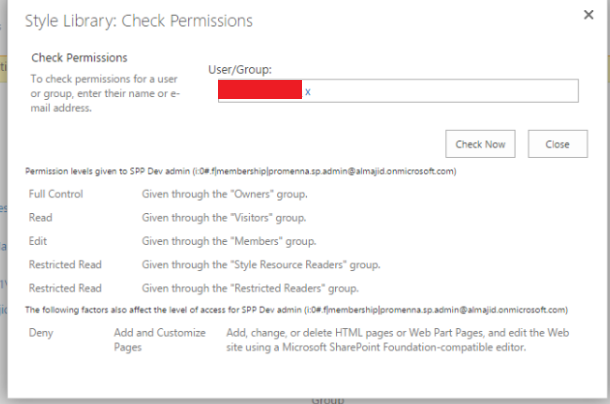

The Deny permission cannot be removed using the standard permission management procedure in SharePoint.

Also, you will find this issue with the root site collection in SharePoint online.

To get rid of the issue, perform the steps outline by Microsoft in the article - Turn scripting capabilities on or off

The scripting needs to be allowed SharePoint Admin Center and if you need it on immediate basis you must use power shell command.

NOTE: If you miss to enable scripting in SharePoint Admin Center, the change performed by the power shell command will be reverted after 24 hours.

Allow Custom Script in SharePoint Admin Center

1. Go to SharePoint Admin Center

2. Select Settings
3. Under Custom Scripts sections, you will see option to Allow / Disallow custom script on persoanl sites and Self-Service sites

4. To get rid of the permission issue permanently, you need to select following options:
  1. Allow users to run custom script on personal sites
  2. Allow users to run custom script on self-service created sites
The changes done will require up to 24 hours to get reflected. To make the change immediately you must use the power shell command. Also, as described by Microsoft, change the custom script setting will affect the root site collection. If you need to apply this change to another site collection, you must use the same power shell command to perform the change to different site collection. 

Power Shell Command to remove Deny Permission
2. Enter the following line, replace the Site URL with your site collection URL and press enter.

Set-SPOsite "SiteURL" -DenyAddAndCustomizePages 0


Saturday, May 14, 2016

SharePoint Solution stuck on deploying, retracting and many other related issues

I recently came across very strange and frustrating issue related to timer job. The timer job is responsible for majority of scheduled task within SharePoint. Any solution which is deployed also get scheduled to be deployed across farm with the help of timer job.

The issue started after updating the SharePoint 2010 farm with Service Pack 1. Any deployment or retraction action cannot complete thereafter. If you are deploying a solution the status will forever remain as deploying. Same is the case with retracting and any other timer dependent activity.

I did all troubleshooting as suggested in various forums:
  1. Cleared SharePoint cache
  2.  Performed all suggestion on these blog posts:
    1. SharePoint 2010 Troubleshooting: Solution deployment stuck on deploying
    2. SharePoint 2010: Solution Package Deployment stuck in Deploying status
    3. http://blog.degree.no/2012/08/sharepoint-2010-solution-stuck-retracting-deploying/
However; the problem still persisted. 

Later, I got a solution from MSDN blog by Tehnoon Raza - SharePoint Server 2010: Timer Jobs not Functioning After Applying Updates. I ran the powershell script and all problems were fixed. I have mentioned the powershell script for easy reference:

$farm  = Get-SPFarm 
$disabledTimers = $farm.TimerService.Instances | where {$_.Status -ne "Online"} 
if ($disabledTimers -ne $null) 

    foreach ($timer in $disabledTimers) 
    { 
        Write-Host "Timer service instance on server " $timer.Server.Name " is not Online. Current status:" $timer.Status 
        Write-Host "Attempting to set the status of the service instance to online" 
        $timer.Status = [Microsoft.SharePoint.Administration.SPObjectStatus]::Online 
        $timer.Update() 
    } 

else 

    Write-Host "All Timer Service Instances in the farm are online! No problems found" 
}

Monday, August 10, 2015

Search Crawl Error - Access is denied. Verify that either the Default Content Access Account has access to this repository, or add a crawl rule to crawl this repository.....

Problem
After Windows updates were applied to the SharePoint Server, the search service failed to crawl the content. 

Error
"Access is denied.  Verify that either the Default Content Access Account has access to this repository, or add a crawl rule to crawl this repository. If the repository being crawled is a SharePoint repository, verify that the account you are using has “Full Read” permissions on the SharePoint Web Application being crawled."

Cause
The windows update actually enabled the Loopbackcheck leading to crawl failure. The other related problem you will often observe is that you cannot login as another user if you have opened Central Admin on the server itself.


Resolution

There are two possible solutions listed at the Microsoft KB article.

Solution 1: Specify host names (Preferred method if NTLM authentication is desired)
Method 2: Disable the loopback check (less-recommended method)

For detail steps follow this link  to the KB article. 

Sunday, August 9, 2015

Smooth scrolling in IPad and IPhones

Recently, I was working on implementation of SharePoint 2013 public site with responsive behavior using bootstrap.

I was facing unusual issue with scrolling of web pages in IPad and IPhones.  The scroll was not smooth enough like it was working in Android devices. One of my good friend who is an expert SharePoint UI developer suggested following one liner CSS fix for this issue.

-webkit-overflow-scrolling: touch;

This worked like a charm.

I am not much familiar with the -webkit. As per this link, it is Open-Source browser Engine used by Safari which is the default browser in all Apple devices.


Sunday, April 3, 2011

Click event stopped firing after ajax postback

I had a user control on a SharePoint master page for one our client portal which was taking longer to load than other modules on the pages. 

Deciding to load this control asynchronously to speed up the page load I achieved this by adding button control inside the Ajax update panel. This button remains hidden from users view. I made the button click event to fire using JavaScript function by pushing it to body onload event using SharePoint's _spBodyOnLoadFunctionNames function.

The control worked as expected, causing the button click event to fire and processing the server side logic. However, the other buttons, link buttons and other server on other modules lost their events. Now nothing happens whenever I click on any server side button controls.

We tried various different options like calling the JavaScript function right into the script tag, mentioning it on the master page’s body onload event etc,. The final one which worked was ScriptManager's registerstartupscript function i.e. ScriptManager.RegisterStartupScript on the server side page load event. I registered the JavaScript function call using the RegisterStartupScript function provided by ScriptManager object. Now the page worked perfectly without any issue. Buttons, hyperlink buttons all worked smoothly.

I am still not sure what caused events to break by calling the function right into the page load. Your suggestions and advice are welcome.

Saturday, February 26, 2011

Solution to error "Security Validation for this page is invalid"

Few days back I came across this issue. It popped up whenever the page is posted back to update content to the site. On further digging into it I found this was somewhat related to the action performed within elevated code(i.e. code within SPSecurity.RunWithElevatedPrivileges).

SharePoint keep track of the requests using the token unique to the user and his request. Whenever the code is elevated the context is changed from the user to the system account.


To ensure smooth operation without the Security Validation error we should add SPUtility.ValidateFormDigest() line just before elevating the code. This MSDN article also talks about the same.

Thursday, August 19, 2010

Deleting Individual events from a recurring series

In order to delete an individual event from a recurring series, you actually need to create a new event and set a few properties on it to link it up to a specific instance from the 'owning' series. You will need to set the following properties (You need all of them!):
  • MasterSeriesItemID
    • Set this to the ID of the owning calendar list item
  • UID
    • Set this to the UID of the ownding calendar list item. If you haven't populated this column in your owning list item, you'll be having all sorts of problems already...
  • EventType
    • Set this to 3 to mark it as a deleted record
  • fRecurrence
    • Set this to 1
  • fAllDayEvent
    • Set this to the fAllDayEvent property of the owner calendar list item
  • EventDate
    • Set this to the date of the event instance you want to delete
  • EndDate
    • Set this to the date of the event instance you want to delete
  • RecurrenceID
    • Set this to the date of the event instance you want to delete. (Yep, this is the one that caught me out...has to be set to a datetime and NOT an ID)
  • Title
    • Set this to the title of the owner calendar event, but prefixed with Deleted:
When you have done this, you should now see an additional event in the All Events view of the calendar with a title of "Deleted: Name of your event" and the date of the specific instance. In the Calendar view, the specific instance should be invisible. This means that if you want to undo your deleted instance, you simply delete the extra list item that you have created and it will reappear!

The above extract is taken from Justin French's Blog. Justin's post talks more about working with SharePoint's Recurring Events. Do check it out.

Wednesday, June 16, 2010

STSADM Error: "Object reference not set to an instance of an object"

I wanted to deploy the newly created site definition build into a wsp package on my clients machine. The solution worked fine on my machine. But when I tried to add the solution to my clients server using the command stsadm -o addsolution -filename "<solution name.wsp>" I got an error "Object reference not set to an instance of an object".

I searched the SharePoint log at the location c:\Program Files\Common Files\Microsoft Shared\web server extensions\12\LOGS for any additional information.

Following information was logged into the log file related to the issue:

06/15/2010 08:03:11.67     STSADM.EXE (0x1818)                         0x17E4    Windows SharePoint Services       Database                          880i    High        System.Data.SqlClient.SqlException: Login failed. The login is from an untrusted domain and cannot be used with Windows authentication.     at System.Data.SqlClient.SqlInternalConnection.OnError(SqlException exception, Boolean breakConnection)     at System.Data.SqlClient.TdsParser.ThrowExceptionAndWarning(TdsParserStateObject stateObj)     at System.Data.SqlClient.TdsParser.Run(RunBehavior runBehavior, SqlCommand cmdHandler, SqlDataReader dataStream, BulkCopySimpleResultSet bulkCopyHandler, TdsParserStateObject stateObj)     at System.Data.SqlClient.SqlInternalConnectionTds.CompleteLogin(Boolean enlistOK)     at System.Data.SqlClient.SqlInternalConnectionTds.AttemptOneLogin(ServerInfo serverInfo, String newPassword, Boolean ignoreSniOpenTimeout, Int64 timerExpire, SqlConnection owningObje...   

On reviewing this info I found that I was using the local system admin account to deploy the feature. Only thing I did to resolve the issue was to re-login as domain account having appropriate access and deploy the solution.

Saturday, April 3, 2010

Created and Modified Field went missing

I was working on moving documents between document library. I used SharePoint's "Mange Content and Structure" to do the migration. The migration was successful and everything looked fine.

We had created a custom WebPart functionality  to fetch documents based on various metadata. It was also dependent on "Created" date. I found this broken after the move. The error was "Created Field not found" but it was visible in the document library. Only thing was during the API call to SharePoint from our custom code, the created field and its value was not being returned to our code and neither the field was being fetched using the tool "U2U CAML builder".

I found the day saver solution on Microsoft Technet. I just had to open the following page and press OK button.

http://[SiteURL]/_layouts/fldedit.aspx?field=Created.

Bingo! Everything seemed to work as before. The modified fields was also missing. I did the same for modified field. Now the Created and Modified field were also being returned in the datatable of the List Items.

Saturday, August 1, 2009

SharePoint shows garbled / junk characters instead of Arabic Characters

While working with multilingual SharePoint site I came across a strange problem. The arabic characters or any non english characters which I entered in dataform webparts appeared as garbled. There were strange characters when viewing the page in browser but it looked absolutely fine in SharePoint designer.

We developers sometimes are careless about basic things which should be taken care of. What I did was just dragged the dataform webpart on the page without adding the web part zone on the page. I added the web part zone and moved the webpart in the zone. Bingo! things worked smoothly. The page worked like a breeze showing the arabic text.

I don't know why SharePoint did not recognize the Unicode characters (in my case arabic) directly on the page. Why it require the web part zone to function correctly? I am still searching for the reason.

Would love to hear from you people about this issue and what could be the exact reason behind the issue.